PowerShell Scaffolding – How I build modules.

Recently I’ve been getting quite a few inquiries about setting up modules for PowerShell. So, I’ve decided to write about it. Below you will read about how I go about creating a new PowerShell module.

Included in this Post:

  • Overview of Scaffolding
    • Plaster
  • My Module Template
    • Local testing files
  • AsBuiltReport
    • Run through an example

What is Scaffolding?

In it’s simplist form, its a common directory and file structure to help you build a PowerShell module. The directory structure helps separate build tools from the actual module/function files. There are two fairly popular scaffolding tools for PowerShell:

Plaster is the tool that I use to create new module scaffolding. I have found it easy to use and when I was first writing modules, there were quite a few blogs that did really well at helping me understand the process and tools. This was probably the most helpful link that I could find using Plaster. -> Kevin Marquette

My Module Template

Of course nothing in the PowerShell world is complete unless you have put your own twist or spin on it! Over time I have created my own Plaster template that I use to generate my own Modules. While the changes are small, it helps me rapidly generate all of the directories I desire to have in a module. My Module template can be found on GitHub.

My additions to the standard Plaster template are the following:

  • BuildSettings.ps1
    • Separate file to add any additional build settings. It keeps things clean IMO.
  • tests\RunPester.ps1
    • Allows developer to run Pester Tests on the full module on local box.
  • tests\RunPSScriptAnalyzer.ps1
  • tests\RunPSCodeHealth.ps1
    • Allows developer to run PSCodeHealth on the full module on local box.
  • Example Function and Unit test files
    • Disable-SSLValidation.ps1
      • Example Function (Located in Public and Private folders)
    • Disable-SSLValidation.Tests.ps1
      • Example Unit test file (Located in Public and Private folders)

AsBuiltReport

I’ve been talking with the guys who are working on the core functionality of the AsBuiltReport PowerShell Modules. They’ve asked me to scaffold out two of their repositories to help create an automated build pipeline for their modules. So lets walk through the process to show you how simple it can be.

  1. Install the Plaster Module
  2. Download my Plaster FullModule Template
  3. Run Plaster!

Step 1 – Is fairly easy, open a PowerShell console and run:


Install-Module Plaster<br data-mce-bogus="1">


Step 2 – Visit the link above and either Fork or clone the repository to your local machine.

Step 3 – Run Plaster, update the paths to match your local directories:


Invoke-Plaster -TemplatePath C:\OPEN_PROJECTS\Invoke-Automation\Powershell\Plaster\FullModuleTemplate\ -DestinationPath .\AsBuiltReport\


Then follow the prompts to create your new Module… It’s that simple!


==================================================
Name of your module (AsBuiltReport): AsBuiltReport.Cohesity.DataPlatform
Brief description on this module: AsBuiltReport.Cohesity.DataPlatform
Github repo name for this module (AsBuiltReport.Cohesity.DataPlatform):
GitHub username (AsBuiltReport):
Module author's' name (AsBuiltReport):
Initial module version (0.0.1):
Destination path: C:\temp\PLASTERSHIT\AsBuiltReport\
Creating folder structure
Create docs\images\
Create tests\
Create spec\
Create .vscode\
Create AsBuiltReport.Cohesity.DataPlatform\public\
Create AsBuiltReport.Cohesity.DataPlatform\private\
Create AsBuiltReport.Cohesity.DataPlatform\classes\
Create AsBuiltReport.Cohesity.DataPlatform\data\
Create tests\public\
Create tests\private\
Deploying files
Create appveyor.yml
Create build.ps1
Create BuildSettings.ps1
Create deploy.PSDeploy.ps1
Create .gitignore
Create .vscode\settings.json
Create spec\module.Steps.ps1
Create mkdocs.yml
Create PITCHME.md
Create readme.md
Create LICENSE
Create module.build.ps1
Create AsBuiltReport.Cohesity.DataPlatform\public\Disable-SSLValidation.ps1
Create AsBuiltReport.Cohesity.DataPlatform\private\Disable-SSLValidation.ps1
Create docs\about.md
Create docs\acknowledgements.md
Create docs\index.md
Create docs\Quick-Start-Installation-and-Example.md
Create tests\Project.Tests.ps1
Create tests\Help.Tests.ps1
Create tests\Feature.Tests.ps1
Create tests\Regression.Tests.ps1
Create tests\Unit.Tests.ps1
Create tests\RunPSCodeHealth.ps1
Create tests\RunPSScriptAnalyzer.ps1
Create tests\RunPester.ps1
Create tests\public\Disable-SSLValidation.Tests.ps1
Create tests\private\Disable-SSLValidation.Tests.ps1
Create spec\module.feature
Create AsBuiltReport.Cohesity.DataPlatform\AsBuiltReport.Cohesity.DataPlatform.psm1
Create AsBuiltReport.Cohesity.DataPlatform\AsBuiltReport.Cohesity.DataPlatform.psd1

This will create the entire directory structure as well as replace the new module name in all of the correct places withing each of the new/copied files. See the Repository used in this example on the AsBuiltReport GitHub.

Feel free to fork/update my Plaster template, I’m always interested to see what the community can come up with.

 

VMworld Hackathon 2019 – PowerCLI team

The annual VMworld Hackathon hosted by the VMwareCode team is one of my favorite events of the year. We get to hang out with community members, eat, drink and pound on keyboards in a competition where anything goes. I’ve participated in each of the last 4 events (US only), and for the first time I was on the winning team! Very exciting! Thank you to the VMwareCode team for continuing to support such a fun event for the community! It’s honestly less about competing and more about learning new things. One of the best parts is getting messages weeks later stating that I helped someone with some little keyboard trick.

hck

This year I put together a team and had a whole bunch of folks join to have some fun with the PowerCLI examples repository. The team was comprised of folks who had skills that ranged from novice to expert. Hopefully everyone learned a few things and could apply them to their normal jobs.

Huge thanks to all my team members. You guys were AWESOME & fun to work with!!

This Year’s Project:

The team would focus on creating an automated process around the PowerCLI Examples repository in GitHub. Some tasks would include:

  • Authoring a Build pipeline
  • Creating quality gates for deployment
  • Advanced Tasks
    • Resolve any current Lint Errors (There are Hundreds)
    • Implement auto-fix instructions during commits for common errors
    • Add Pester Tests for scripts

Why would this be a useful project?

The PowerCLI examples repository is simply a mess. A lot of folks have submitted useful scripts/examples/modules and other things to the repository but there is no consistency in the material. It’s unrealistic to think that one person or even a small group could provide the oversight needed on such a large repository to ensure that only quality/useful code was being published. Our Hackathon team focused on attempting to make this process a little more human friendly. Which would allow the repository owners to set up acceptance criteria and allow for the build process to determine if the code meets the requirements. Additionally it would be great for the consumer of the repository to have an easy method for downloading and using the PowerCLI examples.

What we decided on:

In talks with the team we adjusted the tasks for the night to focus on making the PowerCLI examples repository more user friendly from the Administrative and User side. This would include the following tasks for the night:

  • Create a new GitHub Repository to keep things clean
  • Only focus on the Scripts Directory
  • Convert all the Scripts to Functions
  • Package the Functions as a PowerShell Module
  • Scaffold a directory structure to support a PowerShell Module
  • Select a single Script, convert it to a function
    • Add Pester Tests for the Single script
  • Create CI/CD pipeline using AppVeyor
  • Publish new Module to the PowerShell Gallery
  • Review/Define quality gates
  • Run Linting tools against the newly created functions

What we accomplished:

The good news is that we were able to complete each of the tasks above, with only a few caveats.

  • All of the scripts were converted to functions and the Linting was run against them. However it would not make sense to blindly place all of these items in the Module.
    • The repository we worked from can be viewed on my GitHub page.
  • Only 1 function Get-MigrationsSet has unit tests, it would take some time to create the tests for all of the functions that were converted. See the first bullet.

How’s it work?

  1. The contributor 
    1. Forks the repository
    2. Creates a new Branch for their function
    3. Adds a Function file and appropriate test file
    4. Adds the appropriate Function and test code
      1. Can run tests locally 
    5. Commits code to their Branch and Fork
    6. Creates a Pull Request (PR) to the Master repository
  2. The Repository owner
    1. Reviews the Pull Request
      1. AppVeyor Results
      2. General code purpose
      3. Suggests any edits
    2. Approves or denies the PR
      1. If the PR is approved
        1. The Module is updated on the PowerShell Gallery
          1. Requires a string added to the Merge ‘!deploy’
  3. The Consumer
    1. Can Install the module from the PowerShell Gallery
      1. Install-Module PowerCLIExamples
    2. Can Update the module from the PowerShell Gallery
      1. Update-Module PowerCLIExamples

pipeline

What does the future hold?

Here are my suggestions for the ‘PowerCLI Examples Repository’ of the future….

  • Repository Ownership
    • It’s unclear the level of ownership that VMware should take for the repository and for the module(s). 
    • This comes down to legal responsibility and I cannot speak to what the outcome should or will be.
  • Modules
    • All of the current modules in the Module directory should be broken out into their own repositories. See first bullet.
    • All modules should still follow best practices outlined for the Module Quality gates that need to still be finalized
  • Scripts
    • All Scripts should be reviewed to determine if they are better suited as functions.
    • Scripts are okay, but are less user friendly as far as a Module goes.
    • Should still follow best practices outlined for the Module Quality gates that still need to be finalized
  • Functions
    • All functions should be reviewed to ensure they make sense. Are generally useful and not duplicated.
    • Should still follow best practices outlined for the Module Quality gates that still need to be finalized
  • Module Quality Gates
    • These need to be developed over time
      • Start small, Iterate often, Automate always
    • They will help every contributor write better code
    • Should not be overly complex for new contributors
      • Yes, there is still a learning curve

Raspberry Panthers

This year I have decided to spend more time at my children’s elementary school. I have volunteered to lead a STEAM club. Last year for career day I created a ‘Match Maker’ game using 2 Raspberry Pi’s and some PowerShell to demonstrate what I do each day at work. It was a hit! Several months later I’m still getting great feedback from the 10-minute demo.

Starting in the fall I will be partnering up with a teacher and work with the students to deploy indoor weather stations to each classroom(pending funding). But, I need your help!

The school board will not let the club use the existing network infrastructure for the club. All of the equipment for this club will need to be purchased and operated in a standalone type of environment. The club will need to purchase the Raspberry Pi devices, sensors, cables, laptops, keyboards, monitors, and network gear.

More details are available on the donation website: RaspberryPanthers

Please consider helping by donating. Thank You!


ReportCardPS – Use PowerShell to create VMware Clarity Reports

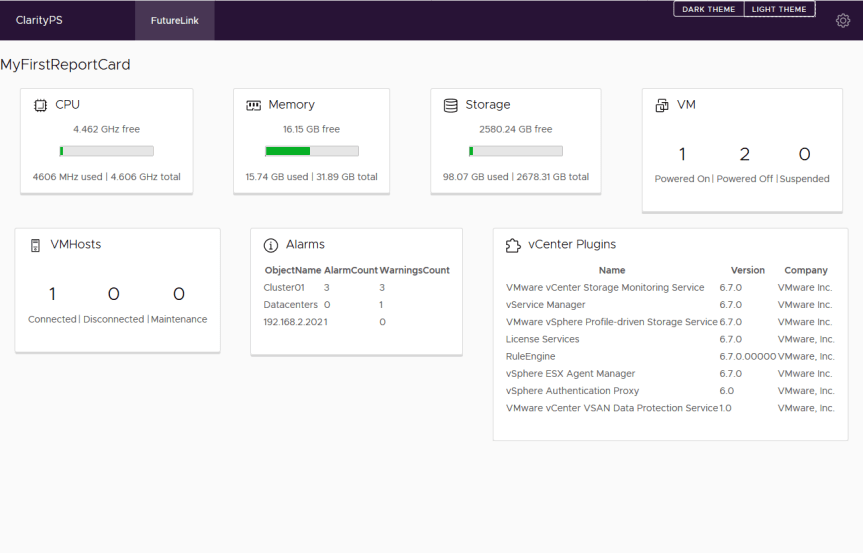
Finally! I’ve updated the ReportCardPS module to be more user friendly. I had some free time while attending the PowerShell and Devops Summit this past week. This module creates ‘Card’ based reports in HTML, using the VMware Clarity HTML/JavaScript library.ReportCardPS_dark

ReportCardPS

I think I need to add some text the the icon above…

In order to separate ‘form and function’ I have create a second module to address the VMware Clarity piece. This way you could plug in any HTML/JavaScript solution to ReportCardPS. But I’m kinda biased with VMware Clarity….

ClarityPS

For the most part, unless you are building customized reports, you can forget about ClarityPS. Just know it exists, and that I still have quite a few more elements to expose to the PowerShell functions.

To get started, install ReportCardPS (This will auto-install Clarity PS:

Install-Module ReportCardPS

Review the available commands:

Get-Command -Module ReportCardPS

Get-ReportCardTemplateSet – This function can check directories for Json Files that can be used as a report template.

New-ReportCard – Ingests a JSON file and loops through the data to create the Cards within the report

If you run ‘Get-ReportCardTemplateSet’ with no parameters, it will return the default template files included with the module.

 
Get-ReportCardTemplateSet 

The current template file is named ‘vCenterHomeReport.json’ and provides the HTML file above. It’s as close as I could get to the vCenter Home page.

Here is a Link to the JSON file used to create the report

When you are ready, Connect to your vCenter:
 
Connect-VIServer 192.168.2.220 -User administrator -Password VMware1!

Then you are ready to run your first report. Keep in mind this is still a new module, and there are no current output options. Please feel free to submit a request!

 
New-ReportCard -Title MyFirstReportCard -JsonFilePath "C:\Program Files\WindowsPowerShell\Modules\ReportCardPS\0.0.8\lib\VMware\vCenterHomeReport.json" | Out-File C:\temp\reportcardps\test.html -Encoding ascii

There you have it! Oh, it also comes with a built in theme switcher! If you like that kinda thing….ReportCardPS_light

All docs are updated for both modules. Enjoy!

ReportCardPS

ClarityPS